Settings
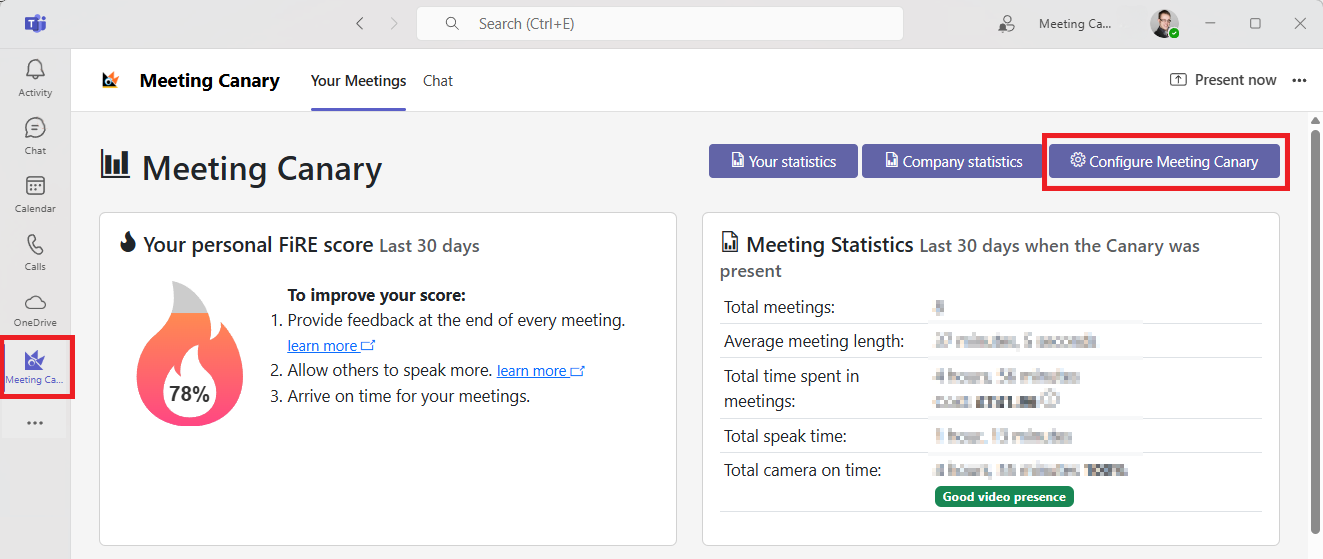
Meeting Canary can be adjusted to suit your preferences. To adjust settings, open the Meeting Canary app in Microsoft Teams. You can access it by clicking the Meeting Canary icon in the right-hand menu. If it’s not pinned, click the three-dot menu icon and search for “Meeting Canary”.
This will take you to the Meeting Insights page. Select Configure Meeting Canary.
From this screen you can adjust the Organisation-Wide settings, such as Default Currency Symbol, Average Employee Cost, Default Meeting Language and whether in meeting animations should be enabled or not.
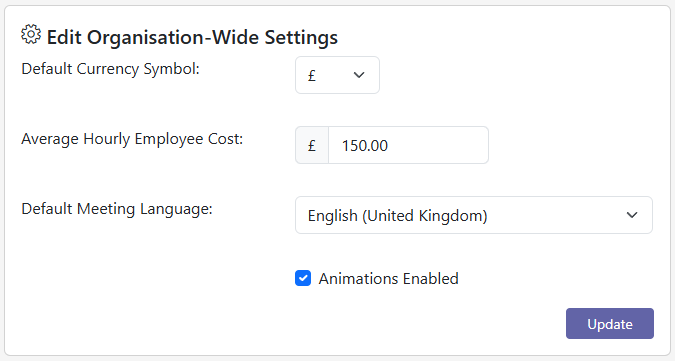
Meeting Language will determine how well the Speech Recognition and Meeting Summary and Actions will work.
Per-Meeting Settings
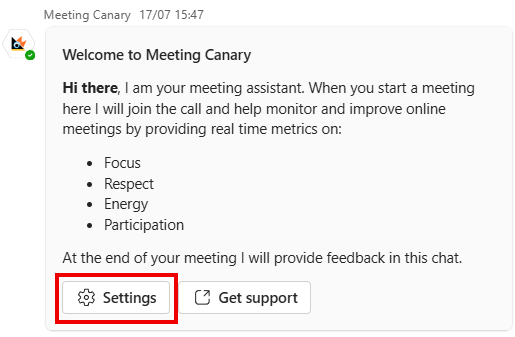
Some meetings may require different settings or language specified. To change this, select Settings on the Welcome Card that is sent when Meeting Canary is added to a meeting.
This will bring up a menu where you can adjust the meeting Language and turn the in-meeting Animations on or off.
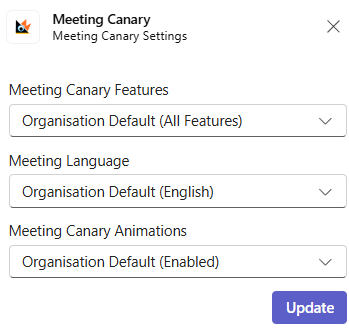
These settings will apply to future meetings in this series.
If you are using Meeting Canary Pro, you can also change which Meeting Canary Features are used.
You can choose from:
All Features: Meeting Canary will join the meeting, enabling the full suite of Meeting Canary tools, including cost calculator, surveys, in-meeting speaker tracking, and post meeting Summary and Actions.
Cost Calculator and Survey Only: Meeting Canary will not join your calls. This limits the functionality to basic cost tracking and post-meeting surveys.